House hunting the geek way, Part 1: Using Photoshop to make heat maps

If you’ve ever moved to a new city and looked for a house or apartment you know how difficult it can be.  What neighborhood, which side of town?  Can we live close to my wife’s workplace and not to far from mine?

I thought I would share the method I used to find our last house, using Photoshop to build a heat map of the city.  Note that this is NOT the method I used to find our current apartment – watch this space for more news on that coming up.

Step 1 – Build a map

In order to build our heat map you’ll need a base map to place everything on.  Back in 2004 when I did this project Mapquest was still the best thing going, so that’s what I used.  If I were doing it now, I would go with Google Maps.

This is the most tedious step, since you’ll need to center your map, take a screenshot, then cut the map portion of the screenshot and paste it into your working image.  If you have a scanner and a nice print map you’d like to use instead, feel free to go that route.

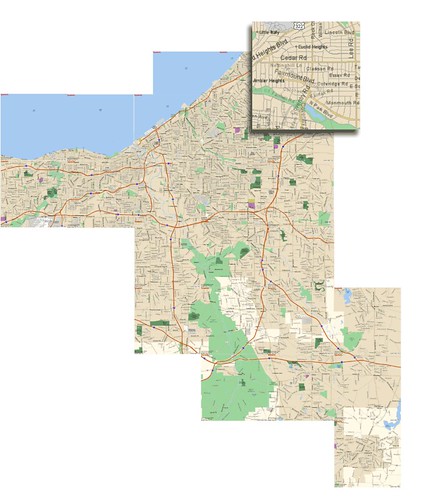
You can see my example, a map for the Greater Cleveland area, below.  Click to see a larger version.  The inset shows you the level of street detail I found best – zoomed in close enough to see all the streets, but not so close as to make your map unusably large.
megamap-example-plain

Step 2 – Place your main locations

What are the three most important factors in real estate?  Location, location, location.  In our case we want to live close to the locations we need to go to on a regular basis.  For us that was two workplaces and two universities.

Heat maps are a great way to visualize information.  They are a perfectly appropriate choice for map location and distance information.  So create a new layer in Photoshop.  Choose the gradient tool and make sure you’re using a Radial Gradient.  The gradient should go from a solid color (I chose blue) to transparent.  Using the map, create a radial gradient about as wide as you would like to drive.

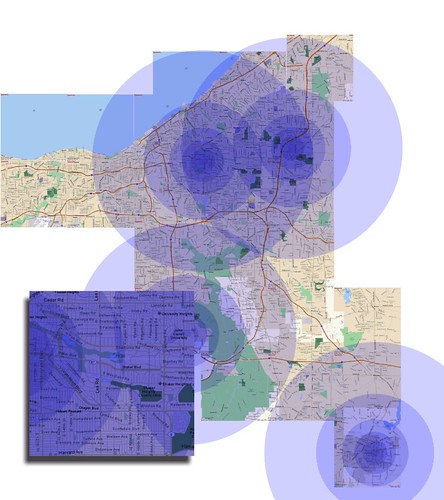
These smooth gradients can make it hard to make distinctions when you are zoomed in and, on a large map, will take up a lot of disk space.  So an alternative method would be to create a series of coencentric circles, each smaller than the last.  That’s the method I used in the example below.
megamap-example-locations

Once you have one good circle layer, copy it for each of the locations you want on your map and drag them in to place.  You’re probably going to want to change the blending mode for the layers so that you can still see map details – I recommend using Multiply and lowering the opacity just a bit.

In my example map, you can already see how this could help narrow down which neighborhoods to look in.  It also shows quite visually that there’s no point in trying to live closer to Kent – it doesn’t intersect with any of the other hot spots.

In part 2, we’ll take a look at pulling in data maps for things like crime statistics , highlighting other map features, and pulling it all together.  Also, I’ll have an exciting announcement about another project I’ve been working on soon as well.  Stay tuned.

Fixing a ‘This site may harm your computer’ warning, part 3: Clearing a spammed forum

Sun setting behind a sculpture in the park near Google Earlier I wrote about the steps you should take if your site has been hacked and is being slapped with a “This site may harm your computer” label. In that post we covered some of the sneaky ways scammers will insert text into your posts on WordPress and other blog software.

But what if it’s even worse? Let’s say you installed a forum like phpBB to play around with but haven’t been keeping up with security updates. Or, even worse, your ftp account has been compromised and spammers have installed their own bulletin board or other content in a subfolder or subdomain. You don’t want Google and Yahoo thinking you are a spammer, so what do you do?

In that worst-case scenario, you’ll first need to change your passwords and make sure you have control of any and all ftp accounts, telnet accounts, etc. You may need to work with your host to make sure everything is locked down. Web server security is a big topic in it’s own right so from here on out we’ll assume you’ve already got that covered.

Step 1 – Delete the spam!

The first thing to do is delete the spammy bulletin board. Go ahead and delete all the contents of the directory. Don’t delete the directory itself quite yet. This does two things – it stops the spammers from getting any benefit from wayward visitors to your site and it causes your web server to start serving 404s (not found) to search engine spiders.

You can go one step further and explicitly tell browsers and spiders that this stuff is gone forever- by serving a 410 (gone). You can do this with any server-side language, my example will be in PHP. Create a new index.php file in your formerly-spammed directory that looks like this:

<?php header("HTTP/1.1 410 Gone");
header("Status: 410 Gone");?>

This will cover the main directory and then you can use mod_rewrite to redirect all the deleted pages to your 410 file.

Step 2 – Update your robots.txt

At this point search engine spiders will be able to figure out that the pages should be removed from their indexes, but only one page at a time as they re-crawl your site. You want it out of there ASAP, so create a robots.txt entry to tell spiders to stay away from the whole directory. It should look something like this:

User-agent: *
Disallow: /forum/

If the spam was in a subdomain, you’ll need to make sure you have a robots.txt file in the root directory of the subdomain that disallows the whole thing:

User-agent: *
Disallow: /

Step 3 – Tell Google about the spam

Log in to Google Webmaster Tools and look under Tools -> Remove URLs.  Create a new removal request for the subdirectory or subdomain you’ve cleaned.  This might seem a little redundant, since you’ve already done two steps that will let search engines know you’re no longer serving up spam.  But it’s worth being as explicit as possible to get your site’s reputation cleared as quickly as possible.

Bonus tip:  Subdomains and Google Webmaster Tools

If your spammed forum was in a subdomain, let’s say http://forum.exmaple.com, you’ll need to add the subdomain as a new site in Google Webmaster Tools.  You’ll need to go through the site verification process for the subdomain, too – it won’t verify automtically like if you had added a subdirectory as a new site.

By the way, if you’d like some more tips about keeping your site clean and tidy, check out this great post on the Google Webmaster Central Blog.

Any questions? Comments?  Tips that I’ve missed?  Please post in the comments section below.

Setting up a Firefox extension development environment

Procrastato, a Firefox productivity extension I have a Firefox extension called Procrastato.  It reminds you to get back to work when you’re mindlessly surfing the web.  Procrastato is a very simple add-on but I’ve found that getting started in developing Firefox add-ons isn’t so simple.

Although I’ve just dipped my feet into the world of XUL and Firefox Extension development I thought I would share what I’ve been using to get up and running.

First things first – take a look at the Building an Extension page at Mozilla.org.  Make sure you at least read through that page before getting started.  It can be a little disappointing to see how much you need to have in place in order to do a simple “hello world” test extension, but it’s worth getting an overall picture before jumping in.

Also, before getting to “hello world,” there are a couple of extensions that are useful for developing extensions:

If you’ve used Eclipse for Java or PHP development you’ll probably want to use it for extension development with the XulBooster plugin.  XulBooster is useful for two reasons:

  1. It helps with housekeeping chores like setting up your install.rdf and chrome.manifest and exporting a .xpi package.
  2. It give you some code coloring and syntax highlighting for those .xul files.

Now you should be ready to go.

A couple of notes:XulBooster will automatically include an empty <em:updateURL/> element in your install.rdf.  If you don’t have a secure URL for updates (starting with https://), you might get this warning from addons.mozilla.org when you try to upload your new version:

Add-ons cannot use an external updateURL. Please remove this from install.rdf and try again.

Just open the install.rdf file and deleted that line to solve the problem.