Monthly Archives: March 2008

Web Video Usability Review: South Park Studios

After a few years of Youtube showing the world how to do video on the web, lots of traditional broadcasters and studios have started putting their content online. Part of the reason is to try to steal YouTube’s thunder – a more market-friendly tactic than just lawsuits. Many of these sites are trying to figure out an advertising model and make money, while others are obviously trying to get viewers more engaged by joining social networks, making mash-ups, etc.

But enough about their goals, what about user goals and experience? In web video the content may be king but usability is almost as important. If your user interface is difficult, confusing, or unpleasant, users will leave your site to get the content elsewhere.

So I’m going to try to do a usability review of various web video sites over the next few weeks. These won’t be formal reviews with user tests and cool eye-tracking heatmaps. Instead I’ll point out some user goals and hold up each site to the same rubrick.

The first site: SouthParkStudios.com

southpark-screenshot

So, what do users want out of web video? I can think of a number of scenarios: finding a particular clip or episode, watching recent episodes, sending a link to a friend or embedding a clip in a blog, and , well, just enjoying the show.

Selection

Score: 4 out of 4 points. This site has everything – every show from every season.

Finding Particular Videos

Method: I’m taking a cue from the creators of Friends – people don’t remember episode names. So I’ll be doing a Google search for the show name and “the one where” and taking the first relevant result. In this case it’s “the one where Ben Affleck has a relationship with Cartman’s Jennifer Lopez hand” (without quotes).

Score: 2 out of 4 points. The search fails, but a simpler query for “Ben Affleck” leads us right to the clips. The full episode is available.

Watching Videos

How easy is it to watch videos? What’s the quality?

Score: 4 out of 4. It’s immediately apparent what to click on to see an episode or clip. You can watch videos full screen and South Park’s animation lends itself well to compressed video. The navigation between episodes is pretty nice, with thumbnails of all episodes for that season along the bottom of the window.

Linking to Videos

Score: 3 out of 4 points. The URL for each clip and episode is available by clicking the “Share” button. Clips open up in the main window so if you can get the link like any other web page. The only lost point is the fact the episodes open in new windows – what is the point? It takes away my browser toolbar and any social bookmaking toolbars or extensions I might normally use.

Embedding videos

Let’s give it a try:

Score: 3 out of 4 points. Once again use the Share button to get the embed code. They lose a point for not allowing embedding of full episodes – they probably have good reasons for not wanting users to do so, but we’re only concerned about the user’s side of things right now.


Advertising

Score: 3 out of 4 points. Ads are shown before the video (for clips) or at two break points about halfway through (for full episodes). Commercials are short and don’t obscure video or interrupt the show more than normal TV commericals would. They lose a point, though, because of the lack of variety – I watched a few episodes and plenty of clips and only saw two different commercials, over and over again.

Audio Experience

I’m going in go with a slightly different scale this time: introducing the patented Bleeding Ear Scale of Web Video Volume.

You may have noticed that some TV stations play their commercials a little louder than the show. The theory I’ve always heard is that they want you catch your attention even if you get up to go to the fridge.

Score:

bleeding earbleeding earbleeding earbleeding ear

Unfortunately, most people don’t watch web video the same way they watch TV – they’re usually sitting much, much closer to the speakers or wearing headphones. The bone-shattering difference in volume between the video and the commercials on SouthParkStudios.com earned the site four bleeding ears.

Total score: 19 out of 24 points, with a special note to dive for the volume button whenever an ad is coming up.
House hunting the geek way, Part 2: Data-driven maps in Photoshop

In part 1 we created a simple heat map in Photoshop to figure out which neighborhoods would be good places to look for a new house. But distance from work and school isn’t the only factor worth considering. We can always add more radial gradients to show proximity to favorite restaurants, family members, and the like. But that’s really just more of the same.

Think about the things that make a neighborhood a pleasant place to be – low crime, low pollution, parks nearby, friendly neighbors – some of those things can be quantified and mapped. We’ll have to wait for demographers to release official neighborhood friendliness metrics after the next census, but let’s see if we can find some of the other data.

Step 3: Highlight on-map elements

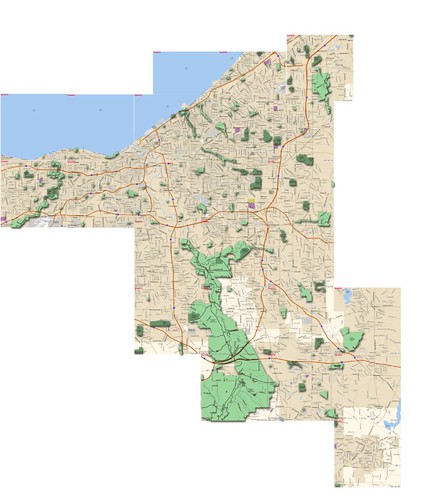
At least one of the new factors we want to look at is already available on our map – parks. All the parks on the map are in one of two shades of green. Use the Magic Wand Tool to select park areas and then Select -> Similar. You can see how I’ve selected the parks in the example below.

megamap-example-parks

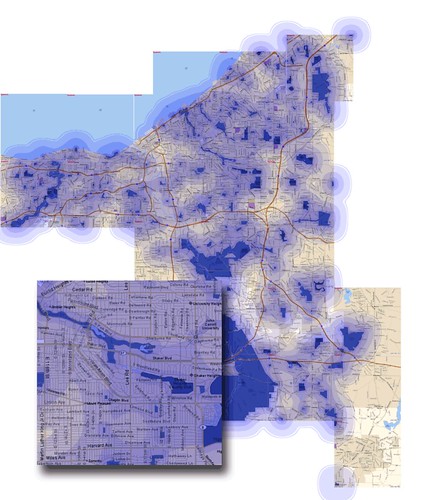
Now we’re going to do something similar to the concentric circles in step 2. Choose Select -> Modify -> Expand. You might have to play around with the number of pixels you expand by – for the scale I was working at, 20 pixels looked like close walking distance. Now use the fill tool with a low opacity to fill the area with the same color you used for the circles.

You can then repeat the expand and fill steps as many times as you like to build a heat map of park proximity. Don’t forget to change the blending mode to Multiply to match your other layers.

megamap-example-parks-heatm

You can follow similar steps for other on-map elements, like shopping centers, college campuses, bodies of water – it all depends on what you like to be near and what’s available on your base map.

Step 4 – Pulling in data maps

First, a disclaimer: this isn’t a tutorial on how to automatically pull data from a server and have Photoshop map it for you (but keep watching my blog for a similar project in the future). Instead, we’re going to pull data maps from other places on the web and fit them over our heatmap.

The hardest part of this next step is finding the maps. The number and quality of maps available depends on your location, but in general the best two places to look are county and city websites and nearby colleges. If you don’t find what you’re looking for under “Maps” try looking for “GIS,” planning departments, or property information. Also, many government web sites have poor search systems – try doing a Google search with the site operator instead. For example, a search for Cuyahoga County might look like this: site:cuyahogacounty.us maps gis.

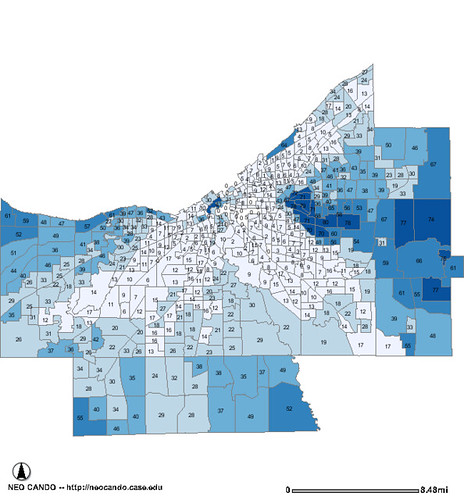
For this example, I’m going to grab a map from Case Western Reserve University’s NEO CANDO site. Another good source for the Cleveland area is the the Cuyahoga County Brownfields GIS server. My wife and I both have graduate degrees and we really value education – so I’m going to grab a map of the percentage of people with bachelor degrees or higher by census tract.

Cuyahoga_NEOCANDO32443568931

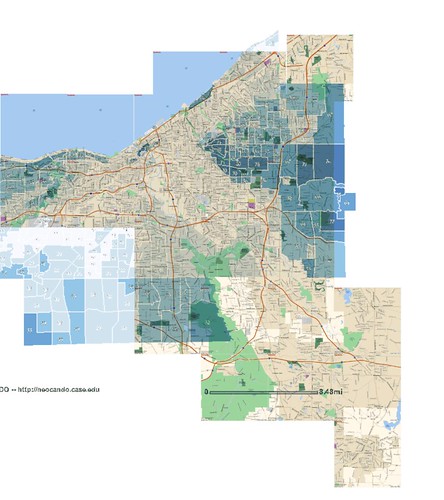
Now that we have a data map, we need to clean it up a bit and add it to our base map. Open the data map in Photoshop and use the Magic Wand tool to select the black and gray areas – the lines and numbers. Use Select-> Similar to make sure uoi have most of it selected and hit Delete. Now Select All, Copy and Paste it into your map as a new layer.

You’ll might want to use the Magic Wand and Select-> Similar again to clear out all the white area around the map and leave it transparent, but you don’t have to – you’re going to change the layer blending mode to Overlay like the other layers anyway. At this point, I can almost guarantee that the data map will be much smaller than your base map. Chose Edit -> Transform -> Scale to stretch it to fit. There’s no sure-fire way to do this, just keep stretching until you have a good fit to known boundaries like coastlines and major streets.

Here’s the result:

megamap-example-college

Step 5 – Bring it all together

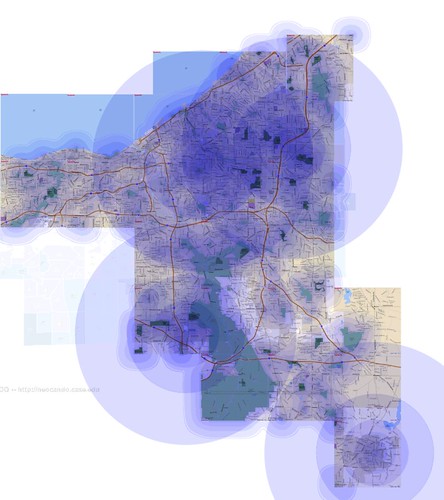
Now that we have all these different layers, it’s time to pull them all together in one heat map.  You have a few options on how to do this.  If you make all the layer visible at the same time your going to get a lot of very blue areas.  Instead, try lowering the opacity of each layer based on who important it is to you.  You can see an example of my Cleveland area map below.

megamap-example-final

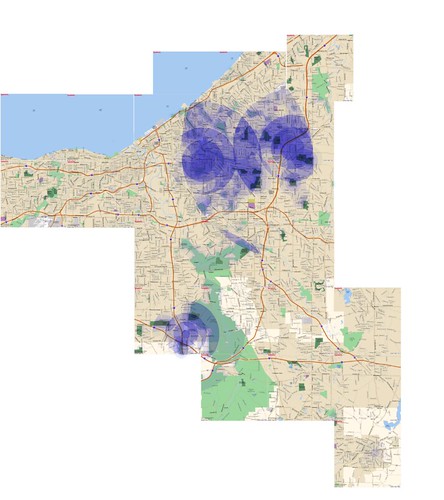
If you want to make the strongest areas of the heat map more visible, start by making your base map invisible while leaving all your other layers up.  Go to Select -> color range and clikc the eye dropper on the darkest blue area you can find.  Now increase the Fuzziness until it looks like the best areas are selected.  Hit the OK button, create a new blank layer, turn off the rest of your layers, and fill the selection with your blue.  You can see the result below.

megamap-example-final2

Hopefully this has been helpful.  You don’t have to make your map quite as involved as mine, and of course if you are looking in a smaller area you can constrain your map further.

Stay tuned for more updates on this topic.  If you have a feed reader you can subscribe to my blog and if you’d like you can get email updates, too.

House hunting the geek way, Part 1: Using Photoshop to make heat maps

If you’ve ever moved to a new city and looked for a house or apartment you know how difficult it can be.  What neighborhood, which side of town?  Can we live close to my wife’s workplace and not to far from mine?

I thought I would share the method I used to find our last house, using Photoshop to build a heat map of the city.  Note that this is NOT the method I used to find our current apartment – watch this space for more news on that coming up.

Step 1 – Build a map

In order to build our heat map you’ll need a base map to place everything on.  Back in 2004 when I did this project Mapquest was still the best thing going, so that’s what I used.  If I were doing it now, I would go with Google Maps.

This is the most tedious step, since you’ll need to center your map, take a screenshot, then cut the map portion of the screenshot and paste it into your working image.  If you have a scanner and a nice print map you’d like to use instead, feel free to go that route.

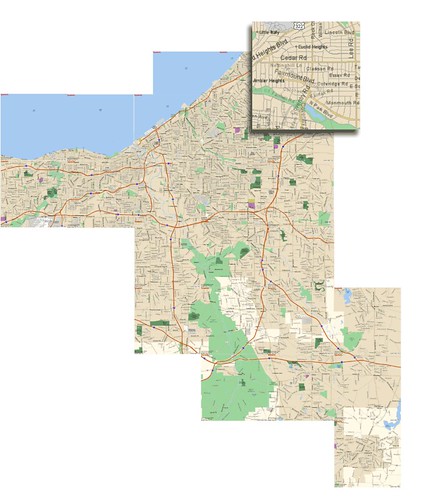
You can see my example, a map for the Greater Cleveland area, below.  Click to see a larger version.  The inset shows you the level of street detail I found best – zoomed in close enough to see all the streets, but not so close as to make your map unusably large.

megamap-example-plain

Step 2 – Place your main locations

What are the three most important factors in real estate?  Location, location, location.  In our case we want to live close to the locations we need to go to on a regular basis.  For us that was two workplaces and two universities.

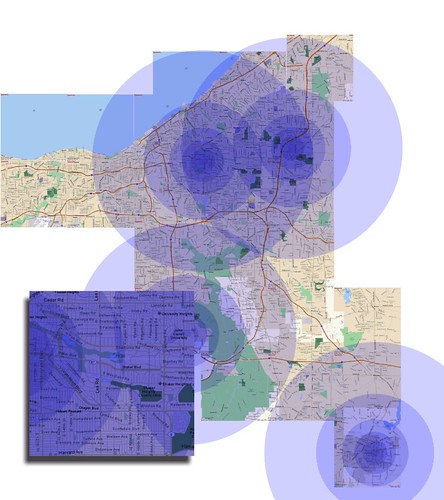
Heat maps are a great way to visualize information.  They are a perfectly appropriate choice for map location and distance information.  So create a new layer in Photoshop.  Choose the gradient tool and make sure you’re using a Radial Gradient.  The gradient should go from a solid color (I chose blue) to transparent.  Using the map, create a radial gradient about as wide as you would like to drive.

These smooth gradients can make it hard to make distinctions when you are zoomed in and, on a large map, will take up a lot of disk space.  So an alternative method would be to create a series of coencentric circles, each smaller than the last.  That’s the method I used in the example below.

megamap-example-locations

Once you have one good circle layer, copy it for each of the locations you want on your map and drag them in to place.  You’re probably going to want to change the blending mode for the layers so that you can still see map details – I recommend using Multiply and lowering the opacity just a bit.

In my example map, you can already see how this could help narrow down which neighborhoods to look in.  It also shows quite visually that there’s no point in trying to live closer to Kent – it doesn’t intersect with any of the other hot spots.

In part 2, we’ll take a look at pulling in data maps for things like crime statistics , highlighting other map features, and pulling it all together.  Also, I’ll have an exciting announcement about another project I’ve been working on soon as well.  Stay tuned.